This planned maintenance notice is to let all DPD vendors know that we will be upgrading the main database server that DPD uses on Wednesday, May 1st from 8AM – 12PM EDT (GMT -4).
While we are giving ourselves a 4 hour window in case of “complications” with the upgrade, we are expecting approximately 30 minutes of downtime for the DPD admin and all shopping carts during this period. Planned maintenance events like these are infrequent but necessary to keep DPD running on the most current versions of server software for the best security and performance.
DPD has maintained 99.999% uptime and we’re committed to keeping our services continuously available to all vendors and their customers.
You can view the real-time status of all DPD services at any time on our status page at https://status.getdpd.com
Enhance the security of your account with Two-Factor Authentication available now on your DPD account.
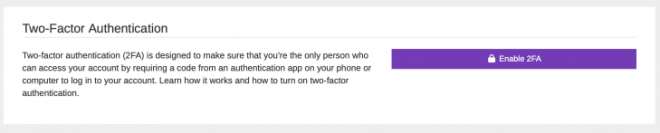
Two-factor authentication (2FA) is designed to make sure that you’re the only person who can access your account. It does this by requiring a code from an authentication app on your phone or computer to complete log in.
Two-factor authentication methods rely on a user providing their account password as the first factor and a second, different factor. In the case of DPD the second factor is a passcode generated by your authenticator app.
Two-factor authentication adds an additional layer of security to the authentication process by making it harder for attackers to gain access to a person’s devices or online accounts. Even if your password is hacked, a password alone is not enough to pass the authentication check.
Setup is straightforward:
Log in to DPD.
Go to the User Menu in the top right of the page and select Profile.
Click the purple Enable 2FA button on your profile.
Install an Authenticator App on your device. Some popular authenticator apps are listed below!
Scan the QR code on this page with your authenticator app to add the DPD passcode generator.
Enter the 6 digit code generated by your authenticator app in the field provided.
Save the recovery codes provided after setting up your authenticator app. You will need these to gain access to your account if you lose the device your authenticator app is installed on.
The next time you log in, you will be promoted to enter the code displayed in your authentication app after using your username and password to confirm your identity.
Here are some popular authenticator apps:
We’re fans of Authy because it syncs between devices and has an available iPhone, Android, Mac, and PC app, but you can use whatever authenticator app your heart desires!
It’s very important to save your backup codes that are provided during setup somewhere safe. These can be used in place of a generated passcode to regain access to your account if you lose your authentication device.
You may also want to consider adding answers to the Security Questions on your profile (located right below the 2FA setup). These security questions will be used to verify ownership of your account by DPD support staff in conjunction with payment information verification if you lose access to your authentication device and backup codes.
We know we’ve been a little quiet lately on the update front, but thats because we’ve been working on big things!
We’ve released a major upgrade for Stripe for product stores that adds Apple Pay, Google Pay, Link, and more to the DPD checkout. We’ve also added enhanced order and account management features in the DPD admin.
A Refined (more) Mobile Friendly Payment Flow
All modern themes for the DPD checkout have always been built for mobile, but we’ve made it even better! In addition to fixing some spacing and minor style inconsistency issues on mobile checkout, gone is the old payment method selection for PayPal + Card methods. Now we display a mobile friendly PayPal button for PayPal Standard / Express above the card form. This works great when paired with the next new feature….
Upgraded Stripe supports Apple Pay and Google Pay!
Once you’ve upgraded stripe your DPD checkout will show Apple Pay or Google Pay options based on the browser / device capabilities being used. Android Phones and Chrome browser (once configured for automatic payments) will show Google Pay automatically. iOS devices like iPhones and iPads as well as Mac/Safari browser will display Apple Pay. One click checkout methods improve conversions! Yay!
Want to try out the new checkout experience with Google/Apple Pay? We’ve enabled test mode on the DPD Demo Store so you won’t be charged!
Note: As with all things Google/Android, Google Pay can be a little more finicky than Apple Pay. Be sure to follow the steps here if Google Pay is not working in your Chrome browser and clear your browser’s cache if it doesn’t display.
Some DPD Admin / Stripe Improvements Too!
We’ve added the ability to search for the stripe Transaction ID to the Orders page in DPD. Have a transaction in Stripe that you want to match up to an order in DPD?
Its easy now- just search for the transaction ID using the big search bar:
Please note, Stripe has several “IDs” on their transaction pages for authorizations, captures, etc.
The one you want to search for in DPD is this “main” one at the top right of the page. Simply clicking on it automatically copies it for you to paste in to DPD:
Sounds Awesome! How do I Upgrade to Stripe Connect?
We’ve upgraded our integration to Stripe Connect, a more secure way for DPD to process transactions through your stripe account. Connect also offers a tighter integration between our platforms.
Unfortunately, you can not automatically upgrade from our legacy Stripe integration to the new Connect integration.
You’ll need to log in to your DPD account and do a simple upgrade process:
Click the Upgrade to Stripe Connect button to upgrade and complete the process.
This will take you to a Stripe login page where you can either sign in using your existing Stripe account or create a new one. Once the process is complete you’ll be returned to DPD!
From there, you’ll see a couple new links on your Stripe Connect integration page:
Update Account lets you change the connected account.
Login to Stripe Dashboard takes you directly to the DPD connected Stripe dashboard where you can adjust your payment settings, view transactions, etc. related to this specific DPD store.
By default, all payment methods that DPD currently supports through the new Stripe integration are enabled. If you want to change these settings you can use the Login to Stripe Dashboard link in DPD, go to Settings -> Payment Methods in stripe, and enable/disable whichever ones you want to support from the available options.
An option you want is not available yet? We’re working to add new payment methods (Installment payments through Affirm, Klarna, Afterpay/Clearpay, alternate methods like Cashapp Pay, etc.) and we’ll announce when those are available to be enabled in your connected Stripe account soon!
Google has ended support for Analytics v.3 this month. All carts that have not been updated by the vendor and still running GA3 code have been migrated to GA4 e-commerce integration code using the gtag.js method.
We’ll use the correct integration code for UA-xxx… legacy identifiers and the new G-xxx…. properties based on the ID you have entered in DPD.
Most vendors will not need to do anything in DPD unless they have added custom tags- these will need to be recreated in GA4 format. You can edit your integration settings by logging in to your DPD account and going to Settings-> Integrations in the left menu and editing the Analytics integration.
If you have any issues with Google Analytics and the GA4 migration please send us a support ticket and we’ll be happy to investigate!
This is just a quick note to let you know we’ve updated our status page provider, so if you want to receive notifications when system status changes please visit https://status.getdpd.com and click the bell icon in the top right to sign up!
System notifications include things like service status changes, planned maintenance events, and… the unfortunate occasional outage. Don’t worry though- DPD is currently sitting at 100% uptime for the past 90 day rolling window!
We’ve just released Custom Cart URLs, a much-requested feature that lets you point a subdomain of your own website at the DPD cart and checkout. This new feature is available to all plans that include 30 products and greater.
Once configured for your store the entire checkout process including all pre-sale pages, cart and checkout, and delivery pages happens at your custom subdomain. This also includes all email activation links and order process / transactional emails too!
Getting it Setup:
Setup is straightforward and requires you create two DNS records at your current website host or domain registrar. One is a CNAME record that points your subdomain at our servers (like store.mycoolwebsite.com) and the second is a TXT record that verifies your ownership of the domain.
This TXT record is an added security feature that prevents a 3rd party from assuming control of your cart and checkout. This verification key should be treated like a secure password that should never be shared outside your organization or trusted web developer.
Some Important Notes:
Existing buttons/links using your *.dpdcart.com checkout URL will always work, but the dpdcart.com URL will be displayed in the address bar. You will need to update existing buttons/links with the new Custom Cart URL for your new domain to be shown.
Once a Custom Cart URL is configured for the store, all new buttons and links generated using the DPD admin for that store will use the new custom cart URL instead of the *.dpdcart.com domain.
We manage the SSL for your Custom Cart URL. You do not need to configure SSL on your domain.
Changing your Custom Cart URL after deploying buttons/links with an existing Custom Cart URL (e.g. changing “store.portallabs.com” to “mystore.portallabs.com”) will cause all links and buttons using the old Custom Cart URL to break. They will need to be replaced with the new links/buttons using your new Custom Cart URL so be sure you like the subdomain you choose before you start generating new buttons/link codes!
Deleting the Custom Cart URL value from the DPD admin store setup page will revert it back to the default behavior of only generating and resolving your *.dpdcart.com domain for links.
In today’s update we’ve added the ability for vendors to create sub-user accounts for employees or assistants to help manage your products and/or customer service functions.
Currently sub-users are supported for product stores only.
Vendors create sub-users from their profile menu:
Sub-Users have two available permissions:
Customer Service: Includes access to Customers, Orders, and Coupons modules.
Product Management: Includes access to the Product modules and can edit all aspects of products (or delete them). Can also send product updates, add product keys, replace uploaded files, etc.
Sub-users can have one of the above permissions or both. Sub-users will never have access to your store settings, payment processors, integration setup, account billing information, etc.
Managing Sub-Users:
Vendors can activate or deactivate sub-users, edit sub-user account information (email, password), and change permissions at any time.
Sub-users will see a different dashboard view based on their permissions.
We encourage any vendor looking to add sub-users to create a test sub-user on their account and see exactly what each permission level can see and do in the DPD admin.
We’ve updated our privacy policy to make it easier to understand and to comply with new and evolving laws like the California Consumer Privacy Act (CCPA), which went into effect this year.
Our updated policy gives you more information about your rights about your personal information. It also gives you more details on how we share your data.
We also updated our policies on cookies and similar technologies used by DPD and our partners (like Google Analytics) to give you updated information about what information we may collect.
These changes are effective as of January 1, 2020. You can follow this link to view our Updated Privacy Policy.
As with anything new, there are always a few rounds of tweaks and fixes as issues are found so here is a fresh hot batch!
Translation Fixes
Some of the field placeholder text (what’s shown in the input fields) and validation errors (the red text that says X field is required) were not being translated properly.
We fixed that! Check out these sweet Chinese placeholders and errors-
In addition, we added translations for some previously untranslated strings in the “pre-cart” pages like EULA, up-sell, download activation, etc.
Some Image and Spacing Tweaks
The images on one of the index layouts were not fluid, meaning they didn’t scale with the screen size. Evidently Fluid is the new Responsive. So, we made them very fluid.
The user text boxes where vendors can place content below the page content on the cart and checkout pages was too darn close to the page content, so we padded those bad boys out by about 20 pixels. It just looks better not scrunched up.
Somehow, a Google+ logo from our design mockups made it in to the production hosted product page. And by somehow I mean “I personally forgot to remove it and checked that bad boy right in to production.”
This is funny because Google+ hasn’t been a thing since April 2nd, 2019. My bad. We removed it.
Fixed a Stripe Refund Issue
This is kinda technical, but we changed the way we process Stripe transactions for PSD2 compliance with the v4 cart. Vendors were having issues doing a refund with this change, so we issued a fix and have the problem resolved. You can now give all the money back that you want if that’s what you’re in to.
We Welcome your Feedback
As always, we welcome your feedback on the new v4 cart. We’re correcting any issues that pop up as they come in and we’re all hands on deck during this release cycle, so please don’t hesitate to share feedback!
We’ve released version 4 of the DPD cart and checkout in Beta with a modern mobile friendly theme, one page checkout, and PSD2 compliance.
Modern Design
The v4 (Beta) design has been optimized to scale for screen and mobile devices and features a clean, light, modern design.
Non-technical people can select custom colors from the theme page like our other themes, and for those who want to dig in you get layout HTML and custom CSS access. The v4 theme is based on Bootstrap 4 so it should be familiar to most developers and designers.
True One Page Checkout
The v4 cart has a true, one page checkout with no additional pages for shipping, tax, custom fields, etc. That means your customers will go to one page, fill it out, and click complete order to be done!
The exception to this is of course when you use a 3rd party hosted processor like PayPal Standard or Express- they’ll go to PayPal to complete their transaction and then return to the DPD Cart. Even so, we’ve removed extra page loads for shipping and tax calculation which should significantly shorten the checkout experience.
SCA / PSD2 Compliance
The v4 cart has full SCA / PSD2 compliance for UK merchants using Stripe and PayPal Standard, Express, and Pro. This is the optional “Verified by Visa” and other card brand specific authentication that some cards require.
Try the v4 (Beta)
We’re calling this a Beta because it’s brand new and, like all brand new things that involve thousands of lines of new code, there may be a few bugs.
However, we’re making it available for use and feedback in your DPD accounts and it’s easy to give it a try:
Log in to DPD
Go to Settings > Checkout
Click the purple button to go to Theme
Add a new theme using the green button in the top right
Select the v4 (Beta) theme
Test it out, customize what you like, etc.
When you’re ready to make it live, click the “Use this theme” button to switch.
Please note- switching themes will preserve all your checkout settings (custom text areas on each page, which fields are displayed, tax and shipping options, coupons, etc.) but if you’ve made any layout or custom CSS customizations you’ll need to redo them for the new theme as it uses new versions.
Give us Feedback
We want to hear your feedback on the v4 cart. Once we’ve gathered feedback and corrected any issues or bugs that arise, we have plans to release a number of other themes based on this checkout flow- a compact theme, a dark theme, etc. to give everyone options.
We want to make sure the base code is solid before moving forward with that though, so please- give us your feedback good or bad on the new v4 (Beta) theme! You can comment here or drop us a support ticket!
DPD is an all-in-one shopping cart and digital fulfillment service for downloadable products. Serving thousands of stores, DPD processes and delivers millions worth of downloads each year.